Getting Started
Soundipity generates MIDI notes in real time. It doesn't produce sound on its own—instead, it drives your existing instruments, synths, and DAWs. Here's how to set up:
Open Your DAW or Synth App
Launch Logic Pro, GarageBand, Cubasis, or any MIDI-capable app. Create a software instrument track.
Set MIDI Input
In your DAW, set the track's MIDI input to "Soundipity" or "All MIDI Inputs". Soundipity will appear as a virtual MIDI device.
Press Play
Tap the play button in Soundipity. You'll hear notes playing through your instrument immediately.
Tweak While Playing
Every parameter responds instantly. Move sliders, change rhythms, switch zones—the music evolves in real time without stopping playback.
Pro tip: Hit record in your DAW while you tweak Soundipity's parameters. Capture evolving performances in a single pass without stopping.
Voices
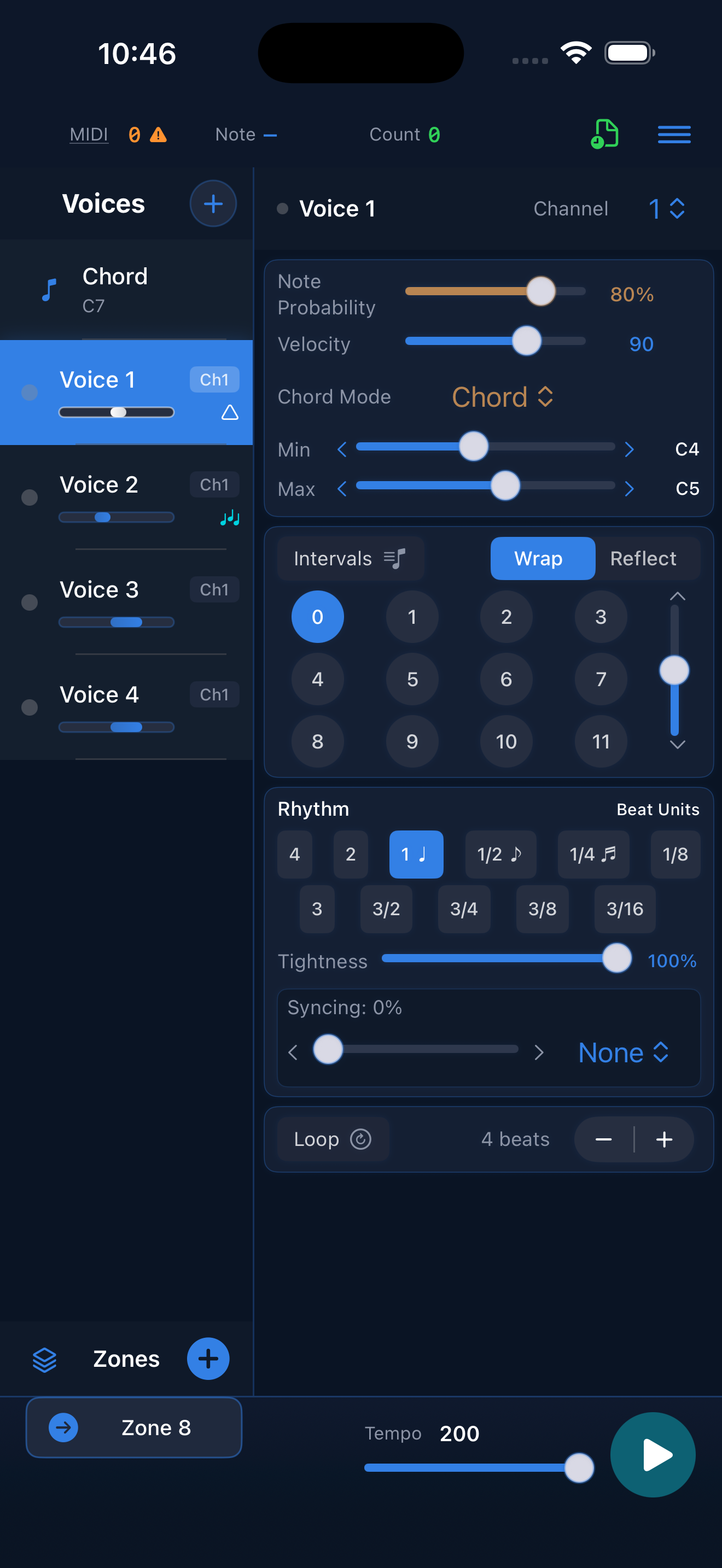
Voices are independent note generators. Each voice has its own parameters—note range, rhythm, probability, MIDI channel—and generates notes independently of other voices.
You can create multiple voices to layer melodies, bass lines, and percussion simultaneously. Each voice can target a different MIDI channel, letting you drive multiple instruments at once.
Voice Parameters
Each voice has a set of core parameters that shape its behavior. All parameters update in real time—change them while playing to hear the music evolve instantly.
| Parameter | Description |
|---|---|
| Note Probability | Chance (0–100%) that a note plays on each beat. Lower values create sparse, breathing patterns; higher values create denser melodies. |
| Velocity | How hard notes are played (1–127). Controls dynamics and expressiveness. MIDI velocity affects volume and timbre in most instruments. |
| Note Range (Min/Max) | The lowest and highest notes the voice can play. Displayed as note names (C4, G5, etc.). Use sliders or arrows for precise control. |
| Chord Mode | How notes relate to the current chord. Options: None, Chord (chord tones only), Root, Scale. See the Chords section for details. |
| Channel | MIDI channel (1–16) for this voice. Route different voices to different instruments in your DAW. |
Intervals
The interval grid controls the relationship between consecutive notes. Tap cells to enable/disable. When the voice generates a note, it picks from enabled intervals relative to the previous note.
How intervals are interpreted depends on Chord Mode:
For example, with interval "1" enabled: in None mode, the next note is one semitone away. In Scale mode, it moves to the next scale tone. In Chord mode, it jumps to the next chord tone (e.g., from the root to the 3rd).
Wrap vs Reflect: When notes would go outside the note range, "Wrap" brings them back from the other end (like an arpeggiator), while "Reflect" bounces back in the opposite direction.
Rhythm
Rhythm controls when notes happen. Select one or more beat divisions—the voice randomly picks from enabled rhythms each time it generates a note.
Standard rhythm values in beat units (1 = quarter note at current tempo)
Triplet rhythms for swing and polyrhythmic feels
| Control | Description |
|---|---|
| Tightness | How precisely notes land on the beat (0–100%). Lower values add swing/looseness; 100% is perfectly quantized. |
| Syncing | Link this voice's rhythm to another voice or to chord changes. Creates coordinated, interlocking patterns. |
Loops
The Loop feature captures generated notes and repeats them. Once enabled, the voice records notes for the specified length, then plays that phrase on repeat.
This is perfect for creating repeating riffs, ostinatos, or rhythmic cells. Disable the loop to return to live generation and capture a new phrase.
Chord-aware playback: When a chord mode is set, looped notes automatically adjust to fit the current chord. A riff captured over a C chord will transpose to match when an F chord plays—keeping the melodic shape while staying harmonically correct.
Creative workflow: Generate freely until you hear a phrase you like, then enable Loop to lock it in. Layer multiple voices with different loop lengths for evolving polyrhythms.
Chord Progressions
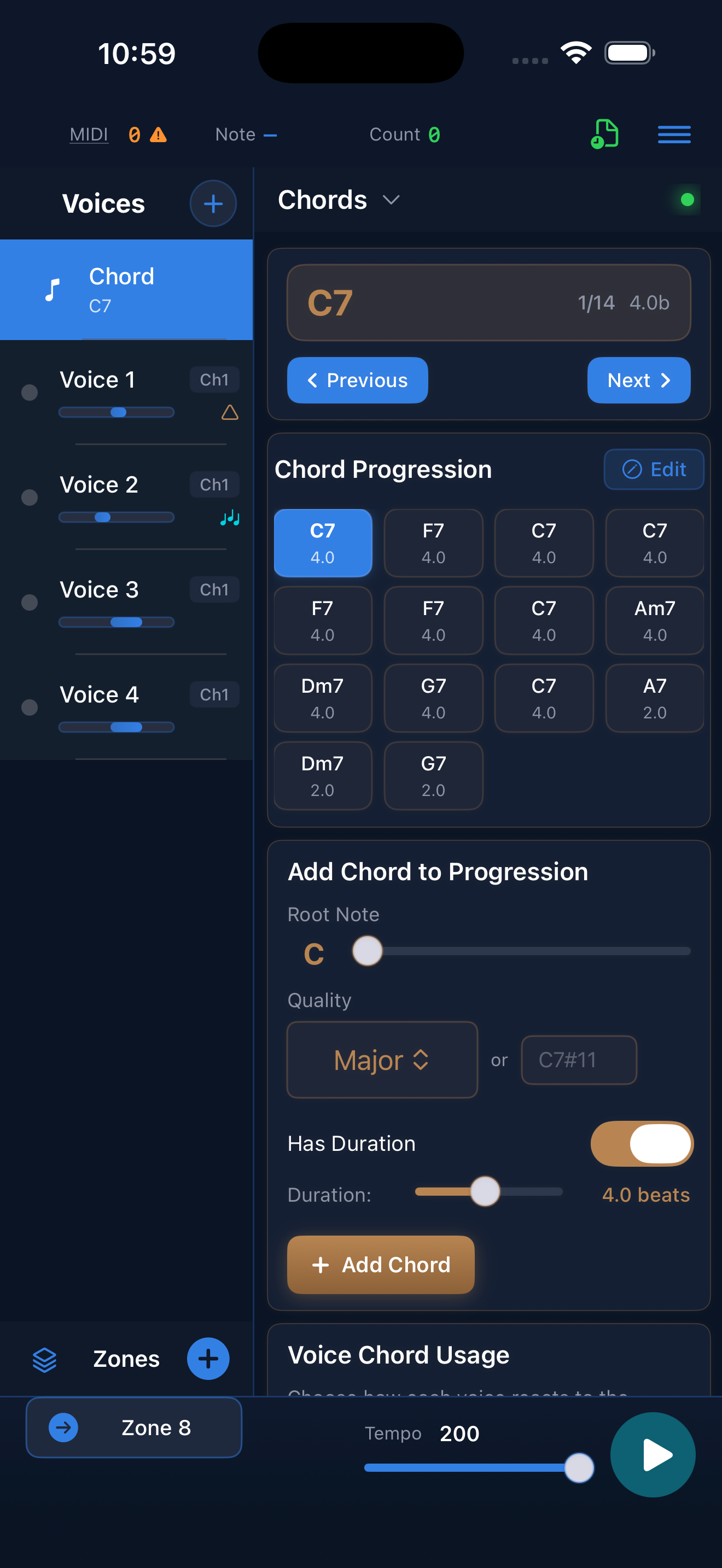
Soundipity's chord system keeps generated notes harmonically grounded. Create progressions by adding chords with root notes, qualities, and durations. Voices can then filter their notes based on the current chord.
If you add a chord without a duration, the progression holds on that chord until you manually move to the next one, giving you manual control for open-ended sections.
Zones
Zones are snapshots of your entire setup—all voices, their parameters, tempo, and chord state. Save zones to build up a library of states for different song sections, then switch between them instantly during performance.
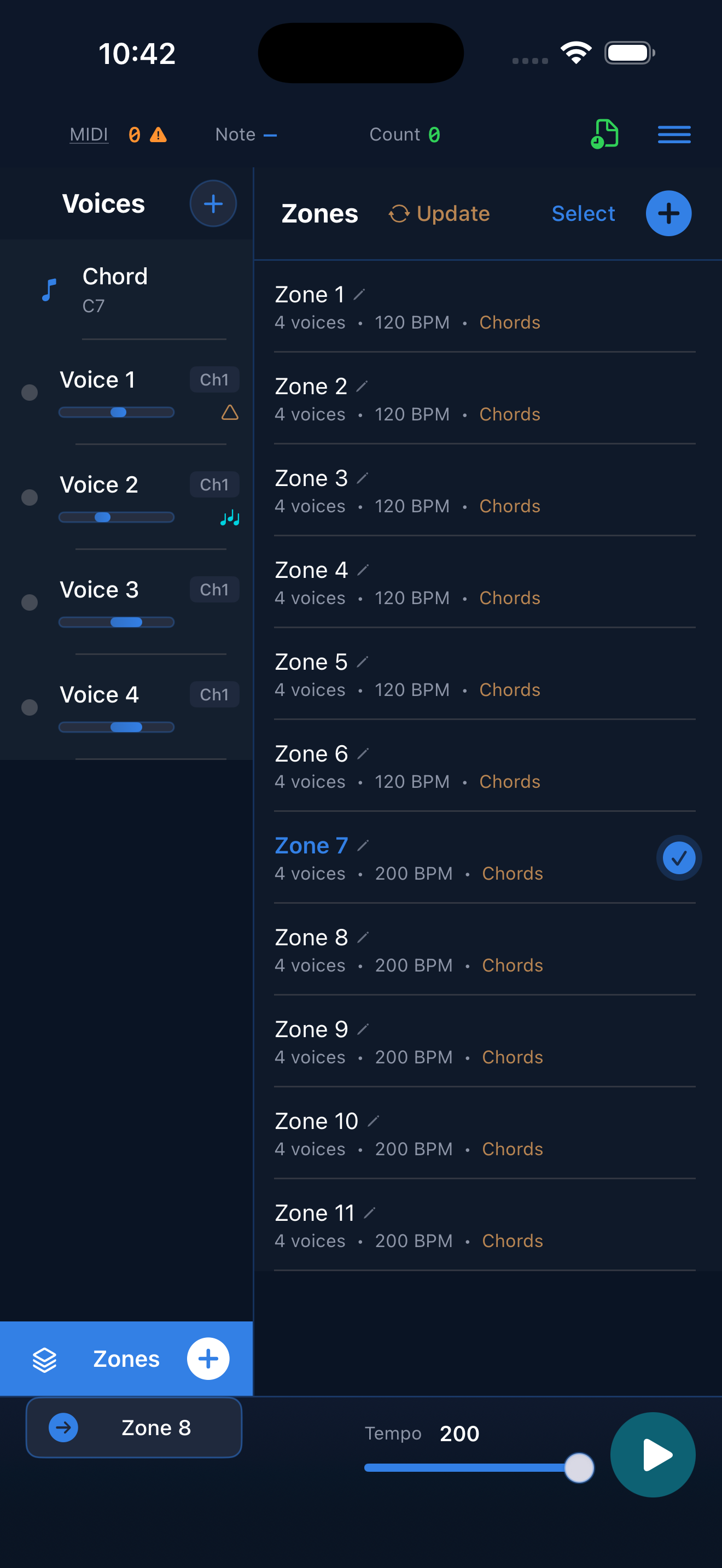
Live performance tip: Connect an external keyboard or foot pedal. Use arrow keys to advance through zones while playing—perfect for hands-free transitions during a live set.